

Give respondents a clearer way to answer and collect data in the format you need.
Email Address, Dropdown and Image Choice are now available as dedicated question types. This quality of life update gives you even more options for the answers you want to collect.
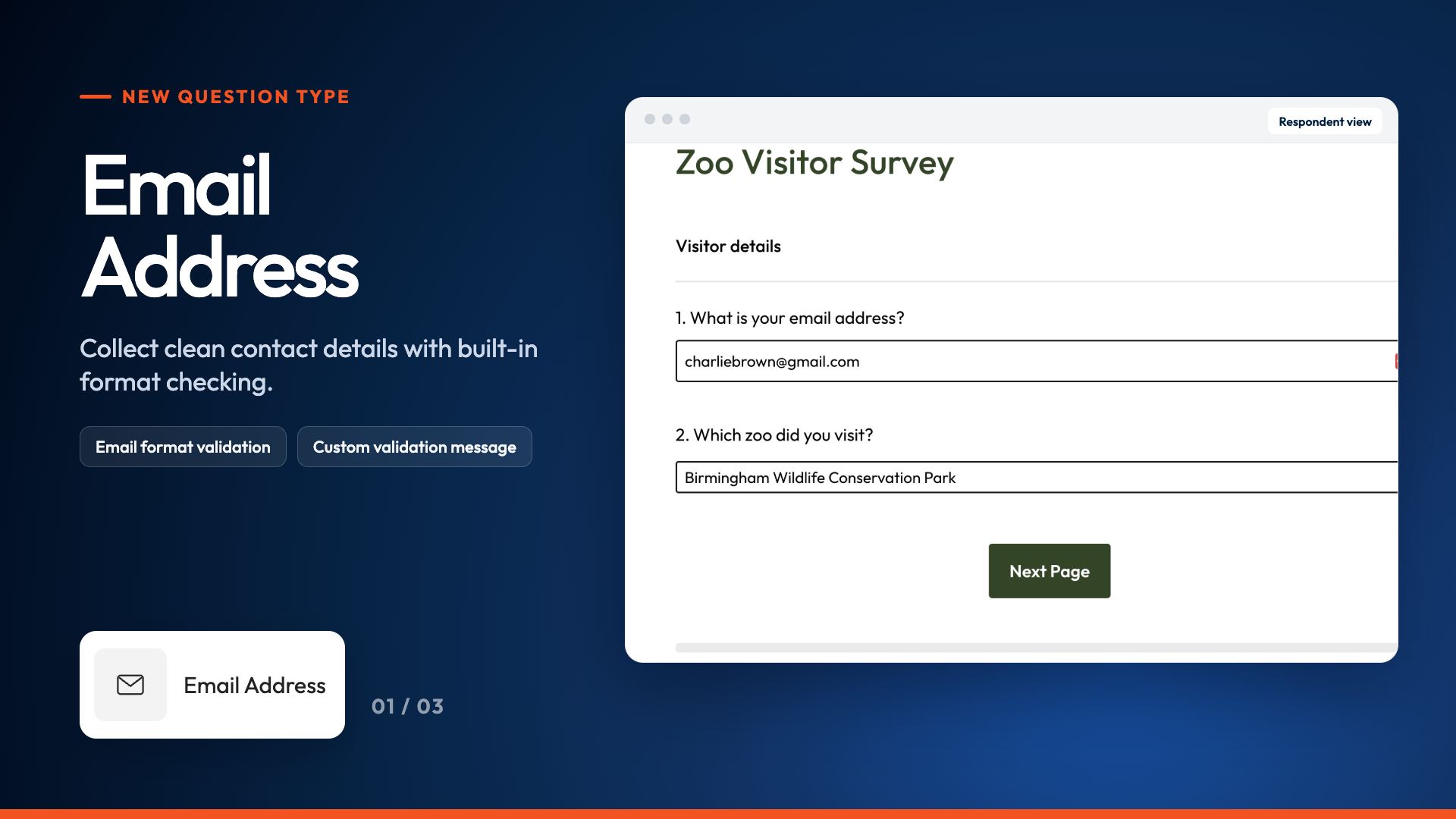
Collect properly formatted email addresses
Use Email Address when you need a respondent's contact details. SmartSurvey checks that the answer follows a standard email format before accepting it, reducing incorrectly formatted responses in your data.
You can choose the field width, make the question required and write your own validation message.
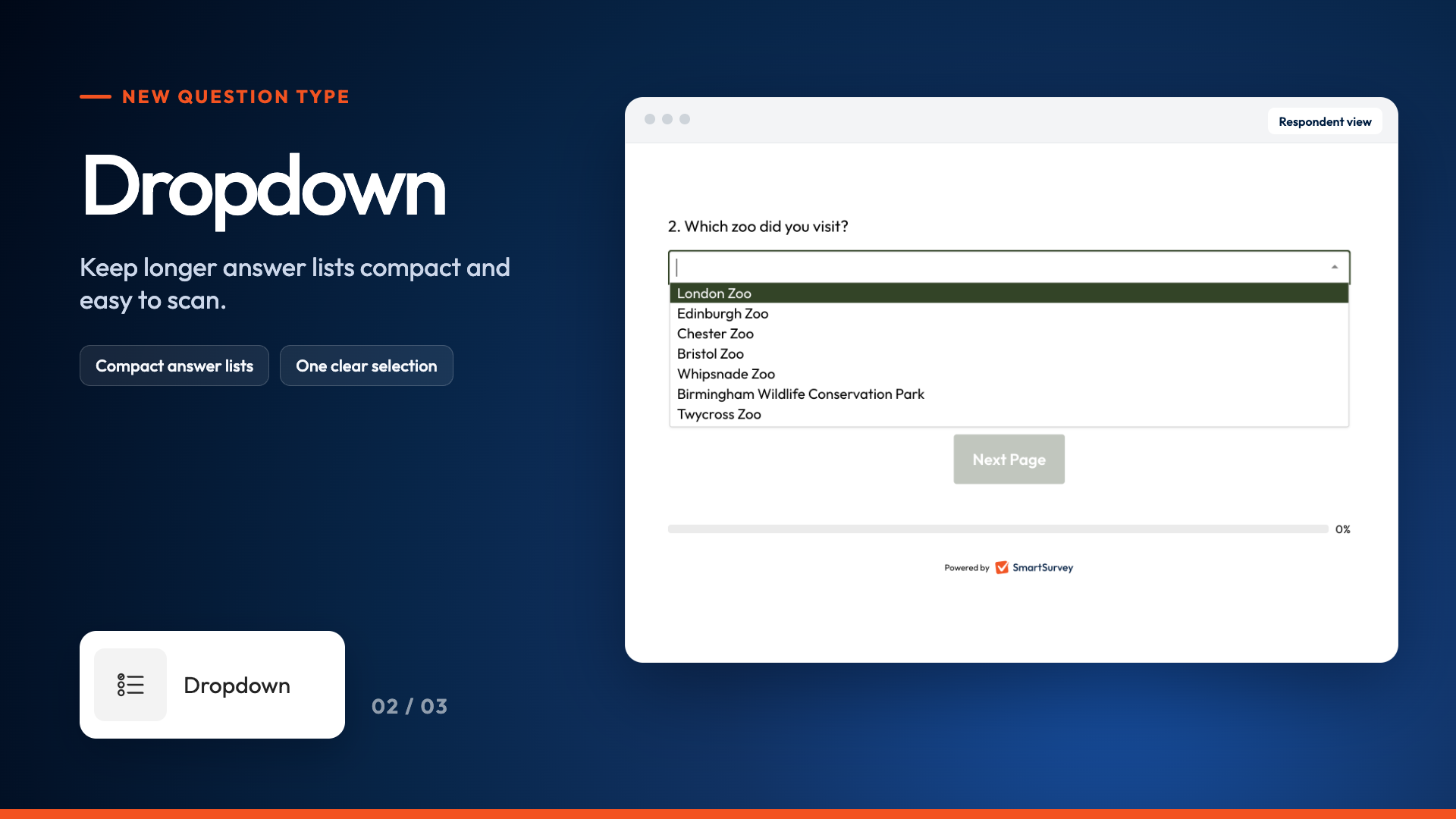
Keep long answer lists compact
Use Dropdown to present a longer list of choices without filling the page. Respondents select one answer from a compact menu, keeping the survey easier to scan.
Add choices individually or in bulk, then reorder, randomise or sort them. If your plan includes searchable Dropdown questions, respondents can also type to find the option they need.
Click here to learn more about the dropdown question type
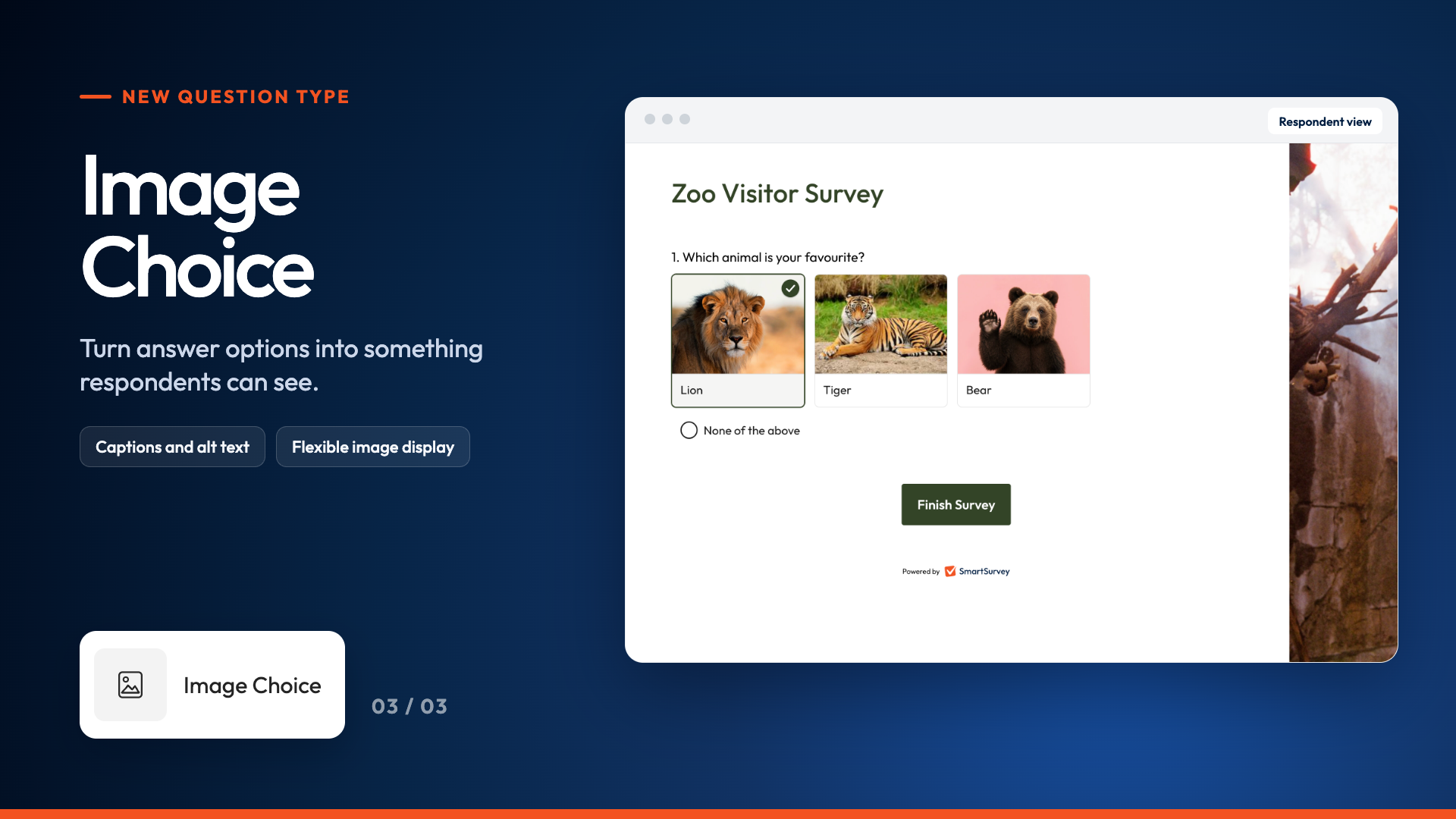
Make choices visual
Use Image Choice when an image communicates the answer better than text alone. Upload an image for each option, add captions and alternative text, then choose how the images fit and display.
You can let respondents select one image or more than one, depending on the question.
Click here to learn more about the image question type.
-----
To use any of the new question types, open your survey and select Add Question. Choose the format from the Question Type menu, add your question and answer options, then save.
Get started and create your first survey


